
Track Blazers Small Business Starter Kit

Content Creation Using Canva
Categories: Content Creation
Wishlist Share

About Course

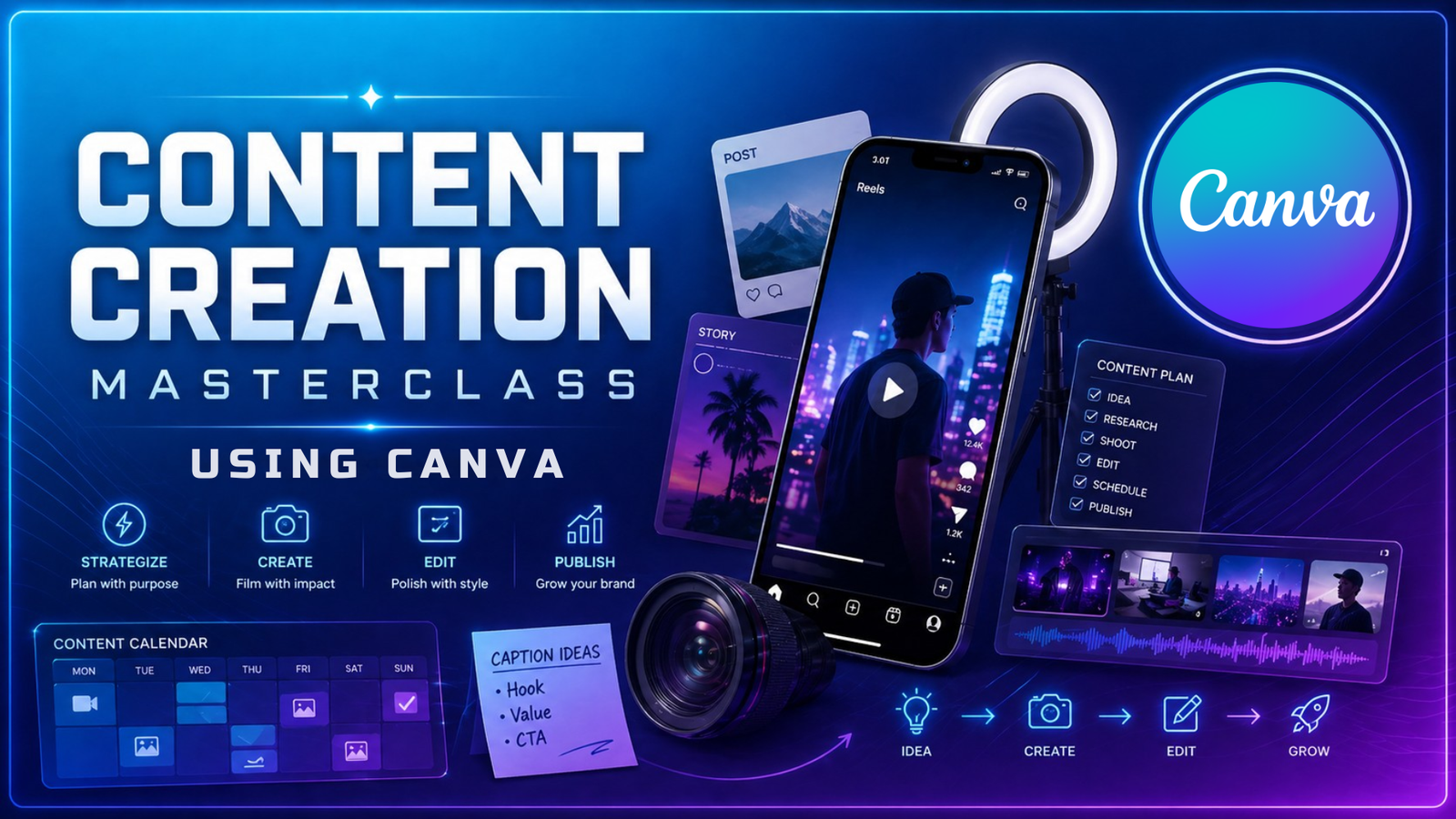
Learn how to use Canva as a practical content creation tool for building eye-catching, on-brand visuals across social media and digital platforms. This course focuses on turning ideas into polished content by combining templates, text, images, layout, branding, and design tools into a repeatable creative workflow. Whether you’re creating posts, promotional graphics, presentations, or other digital assets, this training is designed to help you work faster, stay visually consistent, and create content that looks more intentional and professional.

Course Content

Course Introduction

Module 1: Getting Started with Canva
Get familiar with Canva’s workspace, understand the tools you’ll be using, and learn how templates can speed up the content creation process. This section lays the groundwork for everything that follows.

Module 3: Branding & Visual Identity
Learn how to create and customize logos that support a stronger visual identity. This section helps learners understand how Canva can be used to build recognizable brand assets from both templates and blank designs.

Module 4: Graphics, Documents & Image Editing
Explore how Canva can be used to create polished documents, edit visual assets, and build professional presentations. This section expands your skills beyond social graphics and shows how Canva can support a wider range of business and creative needs.

Module 5: Thumbnail Design
Learn how to create attention-grabbing thumbnails by working with imagery, typography, and layout. This section breaks thumbnail design into its key components before showing how to combine them into stronger finished designs.

Module 6: Video Content Creation
Discover how Canva can support a basic video production workflow. You’ll learn how to source supporting footage, edit primary A-roll content, and use B-roll to make videos more engaging and visually complete.

Student Ratings & Reviews

No Review Yet
No Review Yet
PNFPB Install PWA using share icon

To install app on your device, tap the Share button in Safari. Scroll down and select 'Add to Home Screen'. Then tap 'Add' to place the app icon on your Home Screen.